
GNOK BUG HELP · FOR YOUR TEAM
User guide
From your first issue to a reviewed draft PR. Practical steps for daily work in Gnok Bug.
Updated October 21, 2026 · Open the administrator guide ↗
Your first day
Get from an approved workspace to an issue your team can act on.
- Sign in with your workspace ID and account. New workspaces require email verification and manual approval. Administrators complete MFA setup. See Getting started for the signup steps.
- Choose a project in the left navigation, or ask an administrator to create one. The project supplies the workflow and filing defaults.
- Choose New issue. Write a specific summary, describe the observed and expected behavior, and fill the required fields.
- File the issue, reopen it from the issue list, and check its project, priority and owner.
- Add a comment with the next action. Use Focus or My issues to return to assigned work.
Workspace access and issue visibility depend on your role. A missing project or action may require an administrator’s help.
Back to top ↑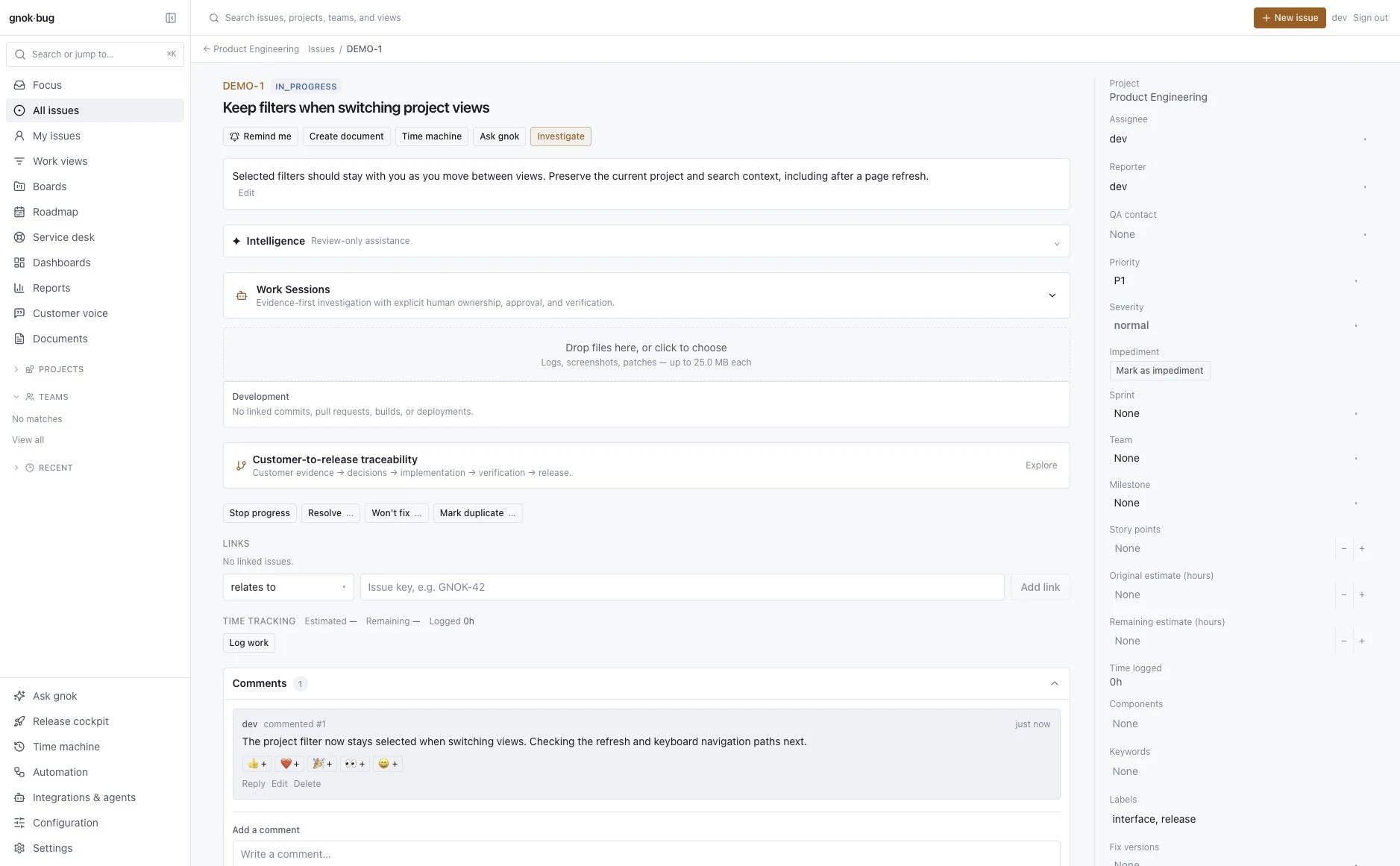
Create and update issues
Capture context, assign responsibility and move work forward.
- Choose New issue and confirm the project and issue type.
- Add a summary and description. Useful bug reports include reproduction steps, expected behavior, actual behavior and relevant screenshots.
- Set priority, assignee and any project-specific fields. Conditional fields can appear after another answer changes.
- File the issue and open its detail page. Use the available edit controls to update the standard fields.
- Choose a workflow action to change status. Some actions require a comment, resolution or other information before submission.
Do not close an issue simply because a code change was generated. Verify the outcome and follow your team’s resolution process. If an edit reports a version conflict, reload the latest issue and reapply the intended change.
Comments, attachments and time
Keep the evidence with the issue.
Add comments on the issue detail page to record decisions and handoffs. Check visibility before posting sensitive information; private comments and restricted issues are intended for their permitted audience. Edit your own comment when you need to correct it.
Use the attachment control to select a file, wait for upload completion, then reopen the issue to confirm the attachment is present. Files larger than 25 MiB are rejected. If attachments are unavailable, ask an administrator rather than repeatedly submitting the form.
Use the work-log control to record time and the issue history to inspect changes. Linking related issues preserves context without copying their conversations. An impediment flag used in planning is different from an administrator-defined request/grant flag type.
Back to top ↑Boards and sprints
Turn a saved view into a delivery plan.
Open Boards and select a board. Its saved filter determines the issue set; columns map workflow statuses. Quick filters further narrow that set, so turn them off when an expected issue disappears.
On a Scrum board, use the backlog to plan a sprint. Create a future sprint, schedule issues, start the sprint when ready, and complete it at the end. Review how unfinished work will be handled before confirming completion.
Use an issue card’s action menu for accessible scheduling and workflow actions. A work-in-progress limit marks a column’s intended capacity; it is not a substitute for deciding what the team should start next.
Back to top ↑Search and saved views
Find the right issues and keep useful queries.
Use the Search page to enter BQL, Gnok Bug’s issue query language. Start with a project filter, then add an owner, priority or resolution condition.
project = "DEMO" AND priority = "P1"
assignee = currentUser() AND resolution IS EMPTY
Run the query and check the results before saving it. Saved searches can feed boards and dashboard gadgets. Sharing a saved search shares the query; it does not grant access to otherwise restricted issues.
If a query is invalid, read the error and simplify it. If the result is unexpectedly empty, check project scope, quick filters and permissions before changing the query.
Back to top ↑Projects, roadmaps and releases
Connect daily issues to larger outcomes.
A project overview brings together recent issues, boards and delivery health. Roadmap shows project status, dates, initiatives and project dependencies. An initiative connects projects around an outcome; a dependency records which project blocks another.
Use versions and milestones to organize delivery checkpoints. The release cockpit helps review work assigned to a release and its unresolved blockers. Reports and dashboards are views of recorded work; incomplete estimates, sprint history or release assignments can leave a chart empty.
Documents hold longer notes and specifications. Customer voice connects feedback to product work. Ask your administrator which of these views your team uses as its source of planning decisions.
Back to top ↑Submit and handle support requests
Customer forms and agent queues serve different roles.
Open the customer portal at app.gnokbug.com/portal, choose a request type, complete its visible fields and submit. Keep the resulting issue key for follow-up. The request type determines the project, issue type, labels and defaults behind the form.
Agents use Service desk to select a project and queue, triage the request, reply and move it through the configured workflow. Queues are saved selections of issues, not separate copies.
If the portal asks for a field that is not displayed, contact the workspace administrator. Do not put credentials into another field to work around a missing control. Business calendars and SLA policies are configured by administrators; confirm your team’s actual response commitments separately.
Back to top ↑Analyze an issue and open a draft PR
A human approves the plan and a human decides what merges.
- Ask an administrator to connect the intended GitHub repository and configure its allowed paths, test commands and workspace AI allowance.
- Open an issue and expand Coding agent. Select the repository, AI account and available model, then choose Analyze issue.
- Review the diagnosis, evidence, steps, exact file scope, test commands, acceptance criteria and risks. Analysis stops for human plan approval before implementation.
- If the plan is suitable, explicitly approve it with Approve plan & implement. If the issue or repository revision changes, obtain a fresh plan.
- The agent implements within the approved scope, runs the configured tests and attempts to open a draft pull request. Read the test results and limitations; passing configured tests does not prove every behavior is correct.
- Review the diff and checks in GitHub. A human chooses whether to merge. Verify the issue’s resolution after merging.
Request a revision when more work is needed. A failed or cancelled run may have consumed real usage; inspect its status and ledger before starting another run. Never paste an API key into an issue, comment or repository.
Explore the walkthrough · Repository setup · AI allowance setup
Back to top ↑Understand AI credits and workspace keys
Purchases, spending authority and usage are separate.
AI credits are an optional prepaid workspace balance, separate from the subscription: $8 per member/month with monthly billing, or $6 per member/month billed annually at $72 per member/year. An authorized administrator explicitly purchases at least $10 through the payment form in the app. There is no automatic reload or off-session AI charge.
For Gnok-managed models, credits pay for published model usage plus sandbox runtime. With a workspace Anthropic or OpenAI API key, Gnok credits pay only for sandbox runtime; the provider bills model usage directly. A ChatGPT or Claude consumer subscription is not an API key.
An administrator approves a workspace allowance and per-run ceiling once. Members can work within those limits without repeated spending checkboxes, while exact implementation-plan approval remains required. The allowance is permission to use existing credits, not a payment.
A hold reserves a maximum; it is not the final charge. Known actual usage settles to the ledger and unused holds are released after reconciliation. No sandbox runtime accrues while a completed analysis waits for plan approval. See the AI Credit Terms for current rates, rounding, recovery, refunds and provider-billing boundaries.
Back to top ↑Members and invited guests
Use the right workspace and understand the access boundary.
Members sign in to their organization’s workspace. Invited guests use the invited-workspace option with their home organization account after the host administrator grants access.
Guest access is scoped to the host’s permitted projects and participating issues. It does not imply administrator rights or access to every issue, private comment or attachment. Ask the host administrator about a missing project or expired grant.
Before sharing an issue link, check the intended audience. A link or saved search cannot override the recipient’s permissions.
Back to top ↑When something does not look right
A short checklist before asking for help.
- An issue is missing: check the workspace, project context, query, quick filters and access permissions.
- An action is unavailable: the workflow may require a field value, comment, approval or permission.
- A saved change looks old: reopen or refresh the page. Report a repeatable stale view with the issue key and the time of the change.
- AI work is paused: ask an administrator to check credits, allowance, per-run ceiling, provider key and service limits.
- A payment completed but credits are missing: avoid making a duplicate purchase. Check the purchase history and contact support with its reference, never card details.
Contact support@gnok.com with the workspace ID, page or issue key, expected result and error text. Remove tokens, API keys and personal information from screenshots.
Back to top ↑